Image Merger
Merge multiple images into one image
Upload 2-16 images, max 200MB per image
Merge images online for free easily
Merge multiple images into one image
Upload 2-16 images, max 200MB per image
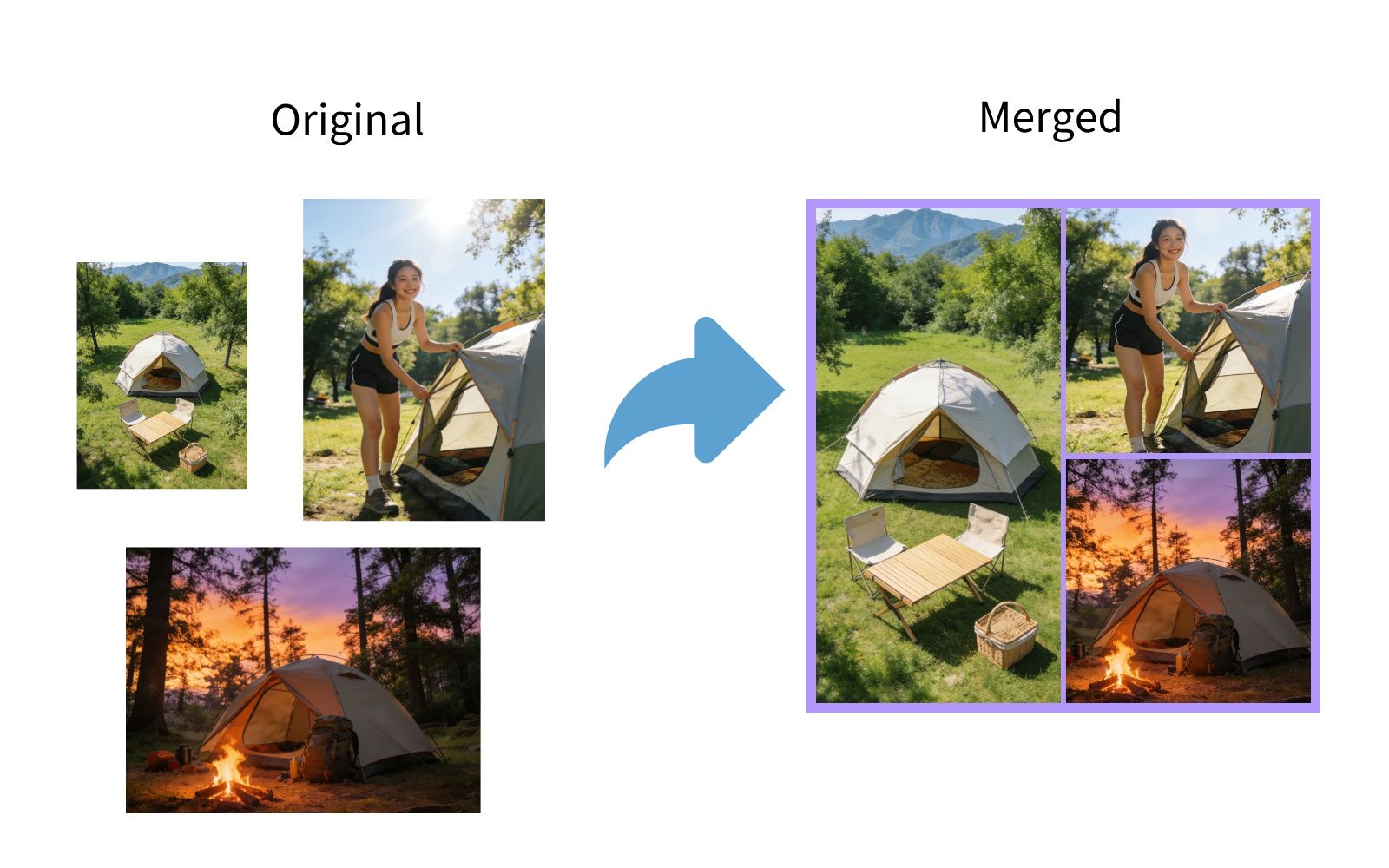
Over 200 preset layout templates for 2-16 image collages, easy to combine as you like
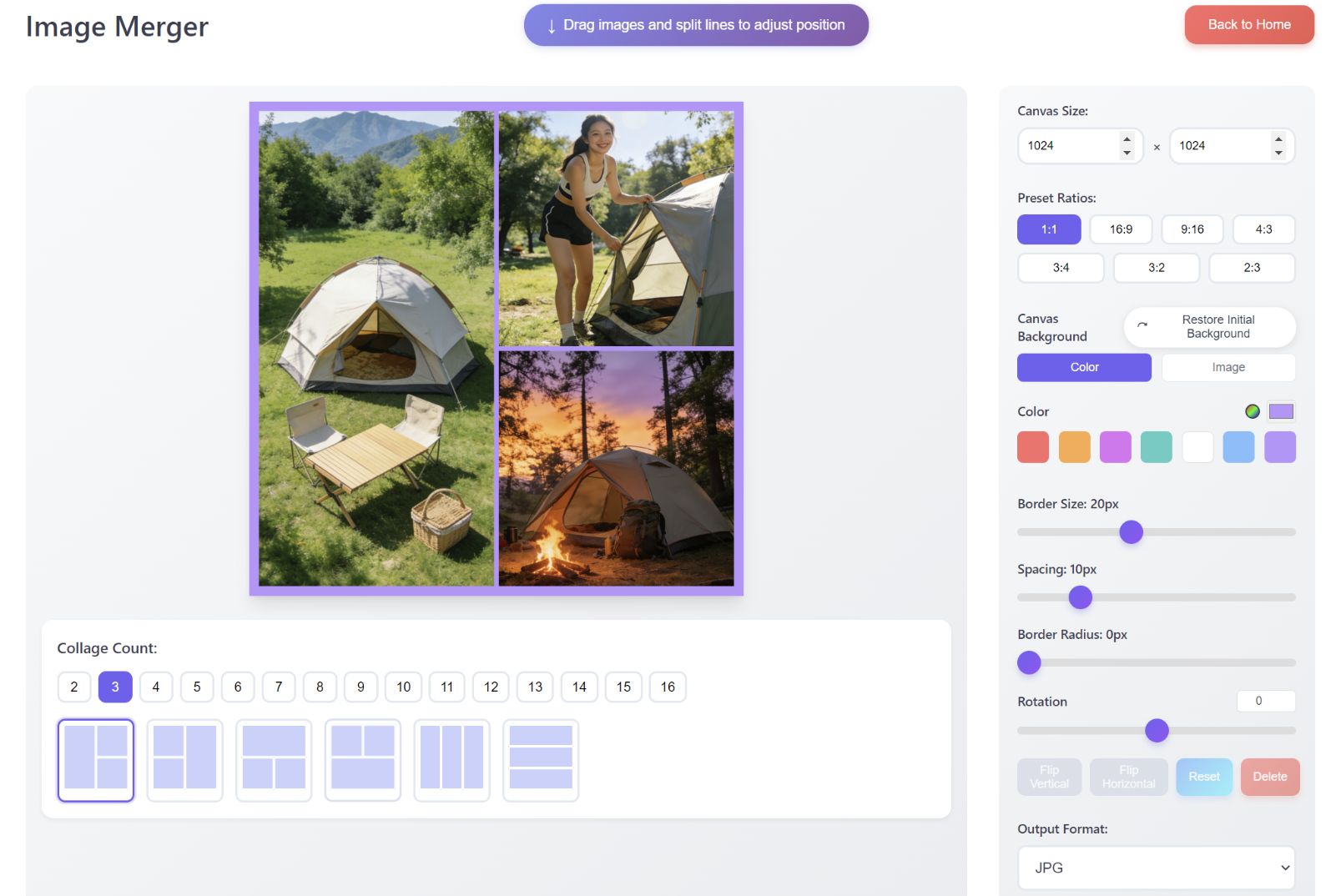
Support adjusting margins, spacing, image position, angle and other parameters, drag to adjust merge lines.
Support custom image background or solid color background, custom canvas size.
Upload images to be merged and select your preferred collage template from the preset template list.
Choose output canvas size, set canvas background (color or image), adjust border, spacing, corner radius and other parameters as needed.
Drag image positions, set rotation angles to complete the merge, select output format, and click "Download Merged Image" to download your collage.
Processing images...
Loading images...
Click to select file
Supports PDF, PPT, Word formats
Converted images will display here
Processing...
Converting...
Processing...
Imagedit(www.yituyigai.com)is a simple, powerful online image processing platform。 It features image compression & cropping, watermarking, image splitting/merging, document to image, image to document and other major functions, supporting all mainstream image formats.
We use advanced compression and conversion algorithms to quickly process your images and files, showing results in seconds with complete real-time preview, supporting batch upload, batch processing, and one-click download of multiple files, efficiently completing image processing and conversion needs.
Our processing mostly runs in your browser, ensuring image privacy and security. A small number of images that need to be uploaded to the server are transmitted via encryption and permanently deleted from the server after 30 minutes, safeguarding user data security. Users can use with confidence.
Extremely simple and easy-to-use interface, upload, process, download - three steps to solve your problem, zero learning curve, smooth experience.
Suitable for photographers, graphic designers, e-commerce practitioners, UI designers, front-end developers, office clerks, general users and various groups. Flexibly define parameters to meet image processing and conversion needs in different scenarios.
For detailed usage instructions and parameter restrictions, please readHelp Center. For any suggestions and feedback, pleaseContact Us。
Hold and drag the circular slider to adjust compression quality and size. Select output format from dropdown menu. After parameter selection, click start compression button to complete image compression.
Below the compressed image on the right, click rotation and flip buttons to adjust image orientation. Click reset button to restore image to initial state.
Click crop button below original image to enter crop mode. Hold rotation icon at bottom-right corner of crop box to rotate at any angle. Click pen icon at center of crop box to manually input width and height. Move mouse inside crop box (cursor becomes 4-way arrow) and hold to move crop box. Hold squares around crop box to adjust crop size. Click apply button to apply crop.
Watermark text input box allows you to enter your watermark text, select font and color, hold and drag circular slider to adjust font size, opacity, and tilt angle. Check tile watermark to achieve tiled watermark effect, use slider to adjust watermark tiling density.
For image watermark, you can select any image as watermark, hold and drag circular slider to adjust watermark image size, opacity, and tilt angle. You can also check tile watermark to achieve tiled image watermark effect, use slider to adjust image watermark tiling density.
Upload clear front-facing portrait photo, otherwise detection will fail.
Crop box is automatically generated with optimal size and position after intelligent face feature recognition. You can also manually adjust crop size and move crop box position. On the right you can select various background colors and rich specifications, download single or 8-photo layout, convenient for printing multiple photos at once.
Select 1 image to enter split mode by default, select multiple images to enter merge mode, up to 16 images can be merged.
In image merging, besides selecting preset ratios for canvas size, you can manually input canvas size, maximum 8000x8000px.
In image merging, click an image to select it, a blue frame will appear around the selected image. After selection, you can zoom with mouse wheel (up to 500% of original size), drag to move the image, and swap positions by dragging to adjacent image locations.
After selecting an image, click the flip buttons at the bottom of the right panel to flip the image, or click reset to restore to initial state.
After selecting an image, drag the rotation slider at the bottom of the right panel to rotate the image.
Move mouse to image seam, hold and drag to adjust seam position.
Canvas background defaults to white, you can select any color or upload an image as canvas background. Border size, spacing, and corner radius can all be adjusted with sliders.
Supports PDF document upload, you can choose page-by-page conversion (each page becomes one image) or long image conversion (multiple pages merged into one long image). If your document is PPT/Word, please export to PDF with Office first.
Choosing Ultra HD or High Definition quality gives good display but larger file size. If you need smaller image size and file size, choose Normal or Compact mode for better results.
Conversion range allows any page number range input, flexibly select any continuous page range, helps precise conversion and reduces image size and file size.
When converting to long image, if image length exceeds 16383 pixels, WEBP format cannot be selected. If exceeds 65535 pixels, JPG/JPEG format cannot be selected. PNG format has no length limit.
Supports uploading up to 200 images, convert to one or multiple documents, supports saving as PDF documents.
Hold and drag photos to adjust page order. After selecting output method and page size, click the convert button below to convert to corresponding document and download.
If you encounter any problems or have questions while using Imagedit, please contact us.
If you have any suggestions or feedback about our product, feel free to contact us.
📧 Leadi Company Customer Service Email:service@Leadi.top
💬 Leadi Company WeChat Customer Service:Leadi_top

Scan QR code to add customer service on WeChat