📖 Operation Guidelines
Imagedit
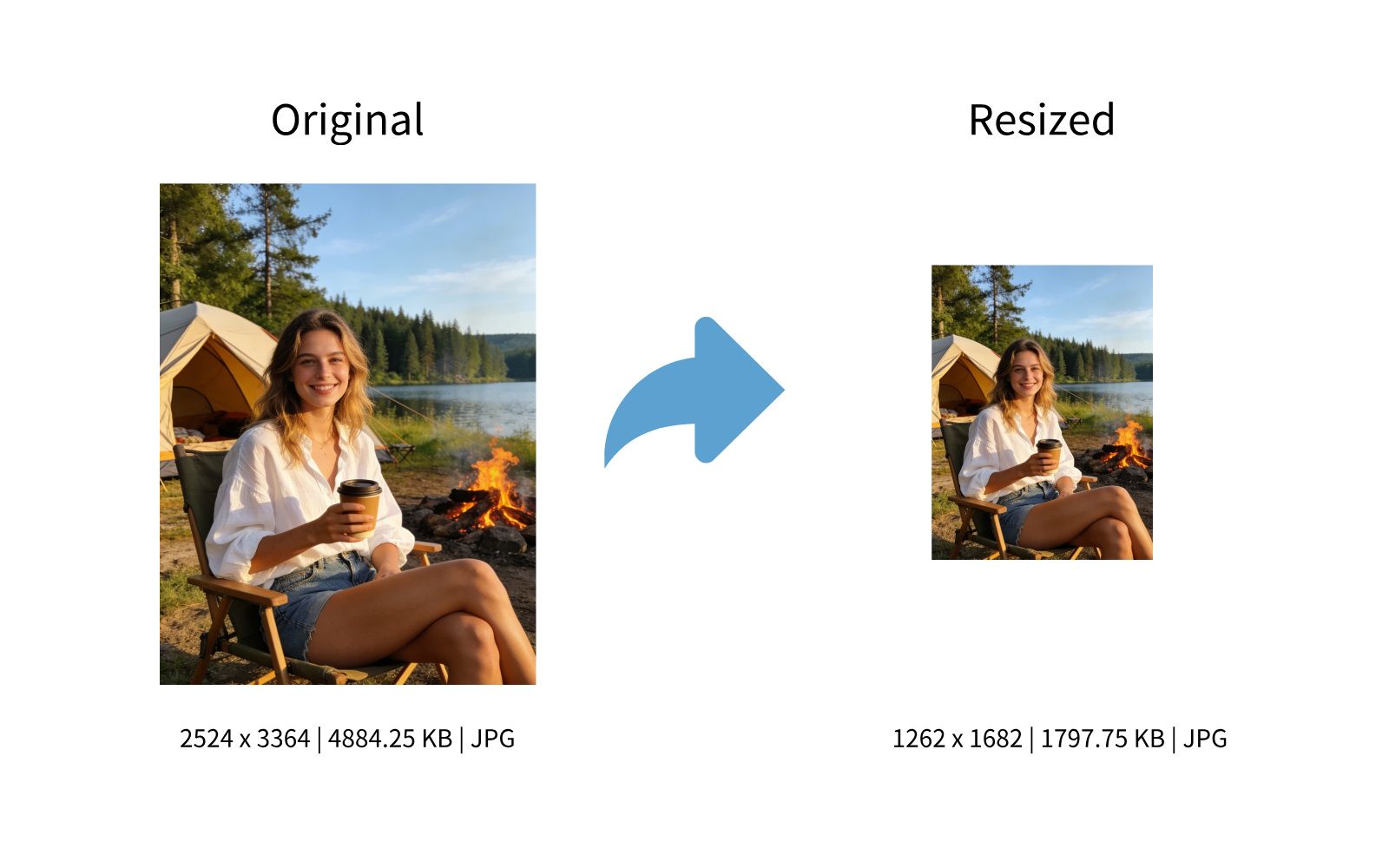
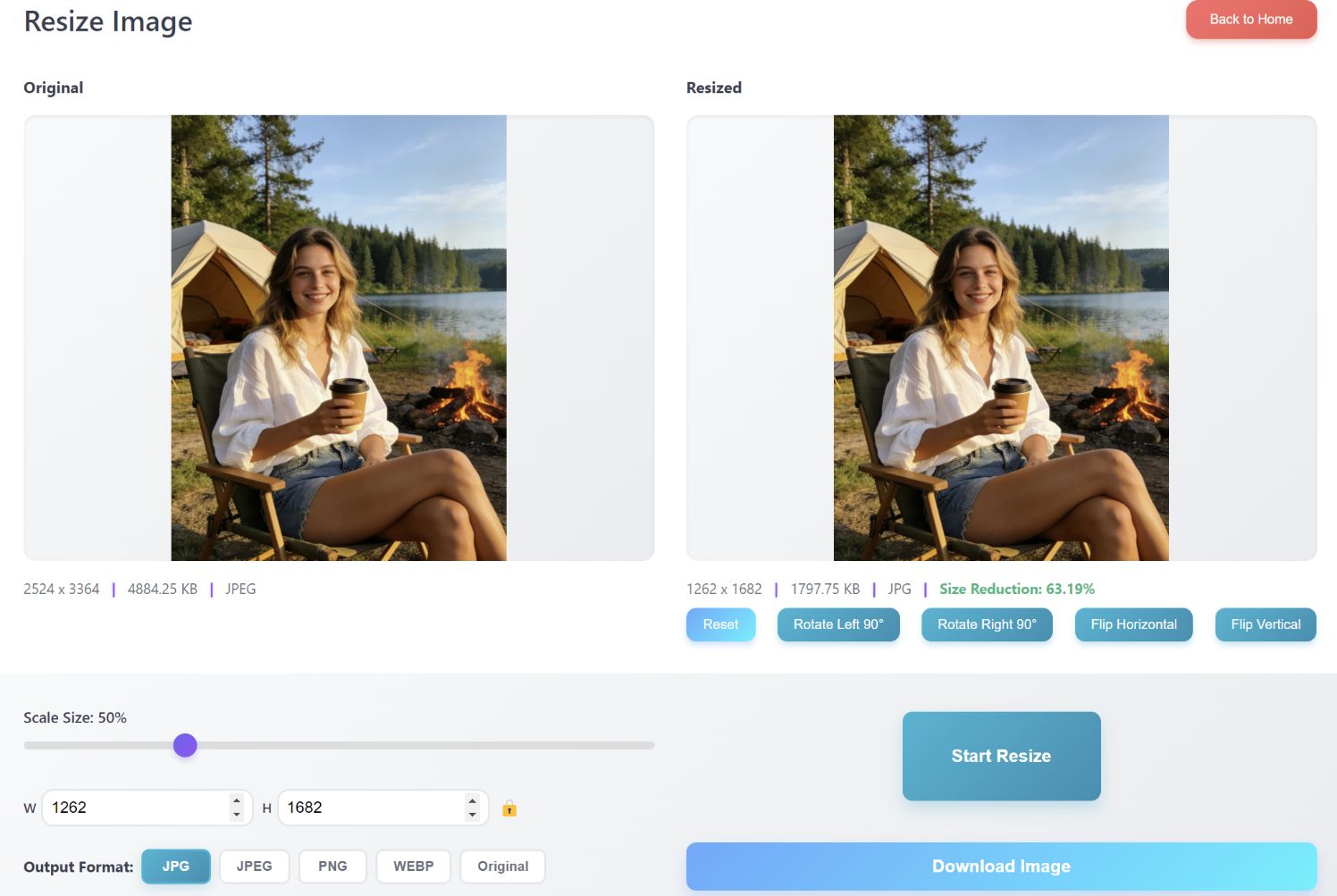
Hold the circular slider with the mouse to adjust image size, select output format from the dropdown menu, after parameter selection click the Start Resizing button to complete image resizing.
Below the resized image on the right, click Rotation and Flip buttons to adjust image orientation, click Reset button to restore image to initial state.
Image Watermark
Enter your watermark text in the watermark text box, select font and color, hold the circular slider to adjust font size, opacity, and watermark tilt angle. Check Tile Watermark to achieve the effect of tiling multiple watermarks, use slider to adjust watermark tile density.
For image watermark, you can select any image as watermark, hold the circular slider to adjust watermark image size, opacity, and tilt angle. You can also check Tile Watermark to achieve the effect of tiling multiple image watermarks, use slider to adjust image watermark tile density.
Upload clear frontal portrait photo, otherwise detection will fail.
The crop box is automatically generated with optimal size and position based on intelligent facial feature recognition. You can also manually adjust crop size and move the crop box position. On the right side, you can select various background colors and rich specifications, download single or 8-photo layout, convenient for printing multiple photos at once.
Image Split and Merge
Selecting 1 image defaults to image splitting, selecting multiple images defaults to image merging, up to 16 images can be selected for merging.
In image merging, besides selecting preset ratios for canvas size, you can also manually input canvas size, maximum 8000x8000px.
In image merging, click on image to select it, selected image will show blue border, after selecting you can use mouse wheel to zoom, maximum zoom up to 500% of original, hold mouse to drag image, dragging image to adjacent image position will automatically swap image positions.
After selecting image, click Flip buttons at bottom of right sidebar to flip image, click Reset button to restore to initial state.
After selecting image, drag Rotation slider at bottom of right sidebar to rotate image.
Place mouse on image seam, hold mouse to drag and adjust seam position.
Canvas background defaults to white, you can select any color as canvas background, or upload image as canvas background. Border size, spacing, and corner radius can all be adjusted with sliders.
Document to Image
Supports PDF document upload, can choose page-by-page conversion (each page becomes one image), or long image conversion (multiple pages stitched into one long image). If your document is PPT/Word, please export to PDF with Office first before uploading.
Choosing Ultra HD or HD for image quality provides good display quality, but image dimensions and file size will be larger. If you need smaller image dimensions and file size, please choose Normal or Compact mode for better results.
Conversion range can input any page range, flexibly select any continuous page numbers, helps precise conversion, reduces image dimensions and file size.
When converting to long image, if image length exceeds 16383 pixels, WEBP format cannot be selected; if image length exceeds 65535 pixels, JPG/JPEG format cannot be selected. PNG format has no image length restrictions.
Image to Document
Supports uploading up to 200 images, converting to one or multiple documents, supports saving as PDF documents.
Hold and drag photos to adjust image page order, after selecting output mode and page size, click the Convert button below to convert to corresponding document and download.
⚙️ Feature Limitations
Image Compression and Cropping
Quantity Limit: Batch upload 60 images simultaneously (not recommended to bulk upload images larger than 10M, may cause browser freezing)
Image Size: Single image max 200MB
Input Format: JPG、JPEG、PNG、WEBP、GIF、AVIF、BMP、TIFF、ICO、HEIC、PSD
Output Format: JPG, JPEG, PNG, WEBP (default JPG, if input image single edge pixels exceed 65535, output format defaults to PNG)
Crop Limit: Cropping not supported if single edge pixels exceed 30000
Output Filename: originalname_compressed_timestamp (single image); originalname_compressed_timestamp and number (multiple images)
Progress Indicator: Progress indicator shown when total images exceed 10MB during upload and compression, no indicator for less than 10MB (usually completes within 1 second)
Image Watermark
Quantity Limit: Batch upload 60 images simultaneously (not recommended to bulk upload images larger than 10M, may cause browser freezing)
Image Size: Single image max 200MB
Input Format: JPG、JPEG、PNG、WEBP、GIF、AVIF、BMP、TIFF、ICO、SVG、HEIC/HEIF、PSD
Output Format: If input format is JPG, JPEG, PNG, WEBP, output format matches input format; if input is other formats, output format will auto-convert to PNG format
Output Filename: originalname_watermarked_timestamp (single image); originalname_watermarked_number (multiple images)
Watermark Type: Text Watermark、Image Watermark
Watermark Quantity: Single watermark, tiled batch watermark
Quantity Limit: Single upload 1 photo
Image Size: Max 200MB
Input Format: JPG、JPEG、PNG、WEBP、GIF、AVIF、BMP、TIFF、ICO、SVG、HEIC/HEIF、PSD
Output Format: PNG、JPG、JPEG、WEBP
Photo Requirements: Frontal portrait photo, face clearly visible
Image split and merge
Quantity Limit: Split mode 1 image, merge mode up to 16 images
Image Size: Single image max 200MB
Input Format: JPG、JPEG、PNG、WEBP、GIF、AVIF、BMP、TIFF、ICO、SVG、HEIC/HEIF、PSD
Output Format: JPG、JPEG、PNG、WEBP
Output Size: Maximum 8000x8000px, minimum 100x100px
Progress Indicator: Progress indicator shown when total uploaded images exceed 30MB, no indicator for less than 30MB (usually completes within 1 second)
Split Mode: Uploading 1 image defaults to split mode, supports custom rows and columns, maximum split 10x10
Merge Mode: Uploading 2-16 images defaults to merge mode, each template has multiple layout options
Document to Image
Quantity Limit: Single upload 1 document
File Size: Maximum 500MB, maximum 3000 pages
Input Format: PDF
Output Format: JPG、JPEG、PNG、WEBP
Output Size: JPG/JPEG files have maximum height/width limit of 65535 pixels. For long images, if image height pixels exceed this value, you can choose to reduce conversion range pages, or use PNG format output, or choose Normal/Compact to reduce image size. WEBP format is not recommended for long images because WEBP maximum pixel limit is 16383 pixels
Progress Indicator: Both document upload and conversion process have progress indicator
Conversion Range: Flexibly select any continuous page numbers
Image to Document
Quantity Limit: Batch upload 200 images simultaneously (not recommended to bulk upload images larger than 10M, may cause browser freezing)
File Size: Single image max 200MB
Input Format: JPG、JPEG、PNG、WEBP、GIF、AVIF、BMP、TIFF、ICO、SVG、HEIC/HEIF、PSD
Output Format: PDF
Progress Indicator: Progress indicator shown when total images exceed 10MB during upload and conversion, no indicator for less than 10MB (usually completes within 1 second)